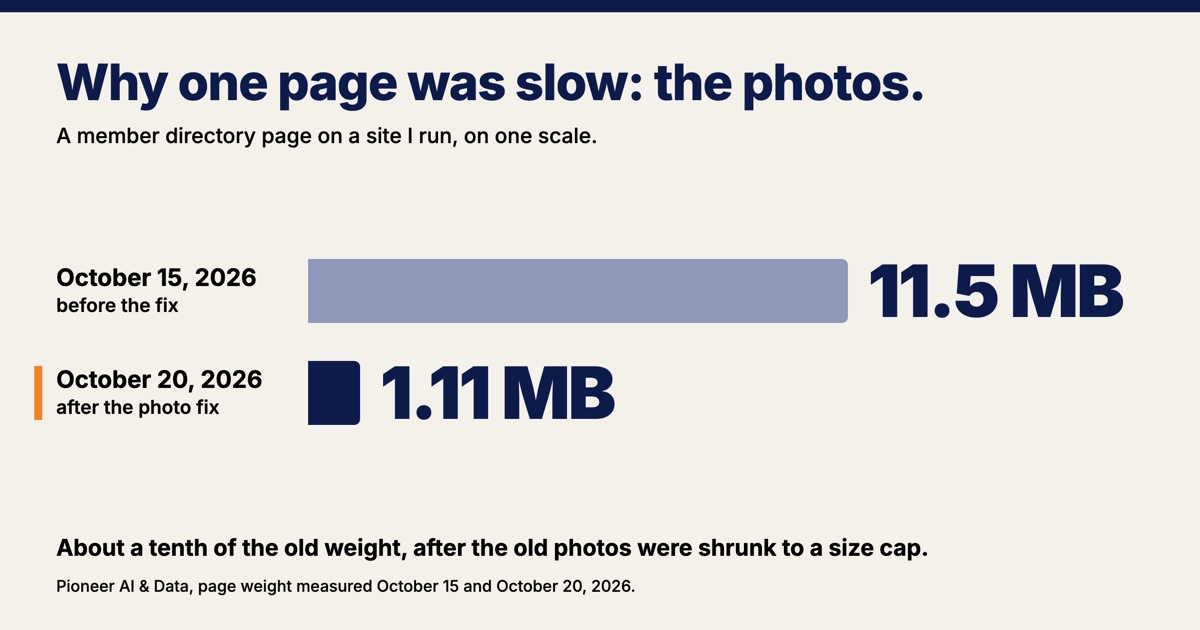
When your website is slow, look at the photos first. Images are the heaviest part of the typical web page, and a photo uploaded straight from a camera can be many times bigger than the space it fills. On October 15, 2026, the member directory on a site I run weighed 11.5 MB. After one re-export of its old photos and a few smaller changes, the same page weighed 1.11 MB on October 20.
I run that site for a local membership group. Keeping a site fast and working is the kind of upkeep my AI and data work covers every month. Below is what made the pages heavy and what fixed them. One of the fixes was for a HEIC photo that was blank in Chrome, Edge and Firefox.
Why is my website slow? Start with the photos
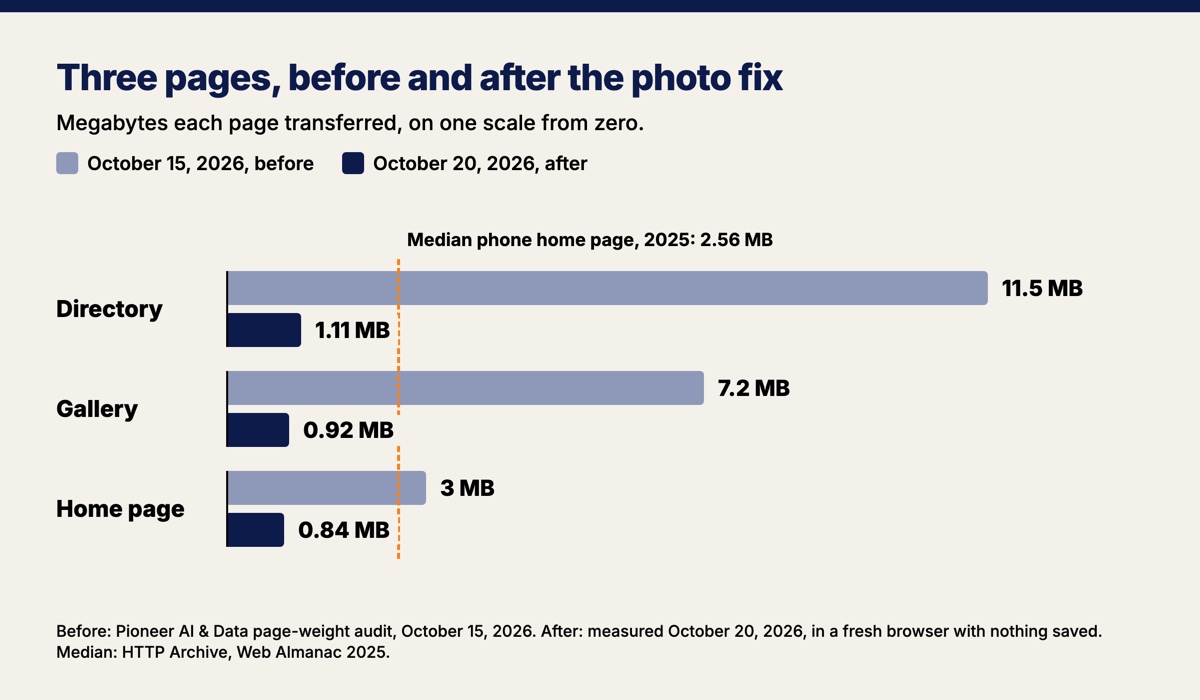
Photos are the largest share of what a typical web page downloads, so they are the first thing to check on a slow site. HTTP Archive's 2025 Web Almanac put the median home page at 2.56 MB on a phone and 2.86 MB on a desktop, and found that "images accounted for the most bytes on both mobile and desktop, followed by JavaScript and fonts." The median phone home page carried 911 KB of images.
The site I run was well past that. On October 15, 2026, its directory page weighed 11.5 MB, about four and a half times the median phone home page. The gallery weighed 7.2 MB and the home page 3 MB.
Images are still most of the weight on the public pages after the fix. On October 20 they were 89.6% of the home page's bytes, 91.3% of the directory's and 92.0% of the gallery's. Nobody took a photo down. The re-export capped old headshots and logos at 400 pixels on the long side and event and gallery photos at 1,600, and left alone any file that would not get smaller.
A photo from a camera is far bigger than the space it fills
A photo from a phone or camera has thousands of pixels on each side, and a web page often shows it in a few hundred or fewer. The browser downloads every pixel, then shrinks the picture to fit, so the extra pixels cost download time and add nothing anyone can see.
The biggest example on the directory was a member headshot 5,100 pixels wide and 7,650 tall, shown in a space about 60 pixels wide. That one file was more than 75 times wider than the space it filled. The site's own logo was a 287 KB file drawn 40 pixels wide in the header and used again as the small icon in the browser tab.
Fixing the upload form does not shrink the photos already on the site
A resize on upload only fixes photos uploaded after the resize exists. Since late August 2026 the site has shrunk new photos over 400 KB in the uploader's browser before they upload, to 1,600 pixels on the longest side. The headshots, logos and event photos uploaded before then stayed at whatever size they went up at.
Old photos left at camera size are the trap I look for on any site that has been around a while. A resize setting added later, by a developer, a plugin or a site builder's checkbox, does nothing to the photos that were already up unless someone runs it over them.
One re-export took the public pages' photos from 18 MB to 1.8 MB
Re-exporting the old photos once, with a size cap for each kind of photo, cut the weight of the public pages' photos by 90%. On October 15, 2026, the 24 photo files on the public pages added up to 18 MB, and four of them were over 1.5 MB each. One script copied every old photo and kept the originals as a backup. The script shrank headshots and logos to 400 pixels on the long side and event and gallery photos to 1,600, and left alone anything that would not get smaller. Afterward the public pages' photos came to 1.8 MB, and none was over 1.5 MB.
Three smaller changes went out the same day:
- The logo became a 128-pixel file of 25 KB and the browser-tab icon a 48-pixel file of 4 KB, in place of one 287 KB file doing both jobs.
- Event and member photos now carry
loading="lazy", which tells the browser to wait until a visitor scrolls near them. If you add it to your own site, Google's web.dev guide has one warning: "Don't lazy-load images that are likely to be in-viewport when the page loads." - Files that only change when the site releases a new version are now cached for a year, so a returning visitor's browser does not have to download them again.
Measured again from the outside on October 20, in a fresh browser with nothing saved, the directory weighed 1.11 MB, about a tenth of its old weight. The gallery weighed 0.92 MB, about an eighth. The home page weighed 0.84 MB, a bit over a quarter.
A heavy page can feel fine on your own Wi-Fi
A heavy page can feel quick to its owner, because a fast office connection and a browser that has already saved the photos hide the weight. Google's PageSpeed Insights tests a page as a phone on a 1.6 megabit per second connection with 150 milliseconds of delay, which Google's documentation describes as "roughly the bottom 25% of 4G connections and top 25% of 3G connections." At 1.6 megabits per second, 11.5 MB is about 57 seconds of downloading. The 1.11 MB version is under 6 seconds.
Speed counts with Google too. Google's own guide to page experience says "Core Web Vitals are used by our ranking systems." Core Web Vitals are Google's three measurements of a page, which web.dev lists as measuring loading performance, interactivity and visual stability. Google's page experience guide also says "There is no single signal," so a lighter page is not a ranking guarantee. Being found takes more than speed, and I covered what a site needs for AI assistants in what your website needs to get found by AI assistants.
An iPhone photo can show in Safari and nowhere else
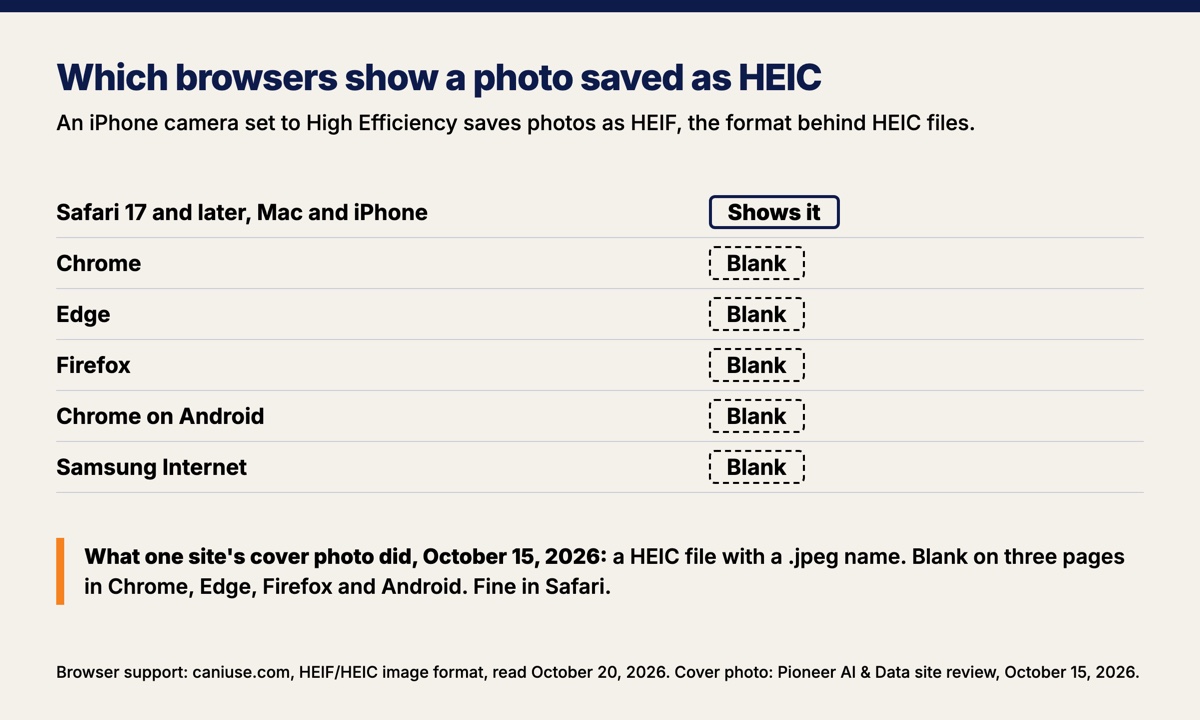
A photo saved in the HEIC format shows in Safari and is blank in Chrome, Edge and Firefox. An iPhone camera set to High Efficiency, the setting Apple recommends, saves photos as HEIF, the format behind HEIC files. Apple's support page says support for the format arrived with iOS 11, and that choosing Most Compatible under Settings, Camera, Formats saves new photos as JPEG instead.
caniuse lists HEIC as supported in Safari 17 and later, on the Mac and the iPhone. It lists no version of Chrome, Edge or Firefox that shows it, and no support in Chrome or Samsung Internet on Android. caniuse's explanation is short: "It is hard for browsers to support HEIC because it is complex and expensive to license."
The cover photo of one of the group's events was a HEIC wearing a .jpeg name. On the home page, the events page and the gallery it was blank in Chrome, Edge, Firefox and on Android, and it showed in Safari. An owner who checks the site in a current version of Safari, on an iPhone or a Mac, would never see a problem.
A blank photo is the kind of failure an uptime check never catches, because the page still loads. I wrote about that whole class of problem in how to know your website is broken before a customer does.
The fix for the cover photo was converting it to a real JPEG, then changing how uploads are checked. The site now reads the first bytes of every uploaded photo instead of trusting its name. A HEIC or TIFF photo is turned away with a note to export it as JPEG, and in Safari, which can read HEIC, the site converts the photo to JPEG in the browser before it uploads.
The heaviest photos left on the directory are saved as PNG
On October 20, 2026, the three heaviest files on the directory page were member headshots saved as PNG. PNG does not throw away detail to save space, and Google's web.dev guide says that gives "the highest quality image, but at a cost of significantly higher file size than other formats." For a photo the same guide says: "Use JPEG, lossy WebP, or AVIF."
The three PNG headshots weighed 135, 152 and 190 KB. Saved as JPEGs at quality 82, the same three photos weighed 27, 32 and 32 KB, 81% less together. The JPEG headshots already on the page weigh 22 to 57 KB. One of the three has a see-through background, and web.dev's format table lists JPEG as having no transparency, so that one needs a solid background before it becomes a JPEG.
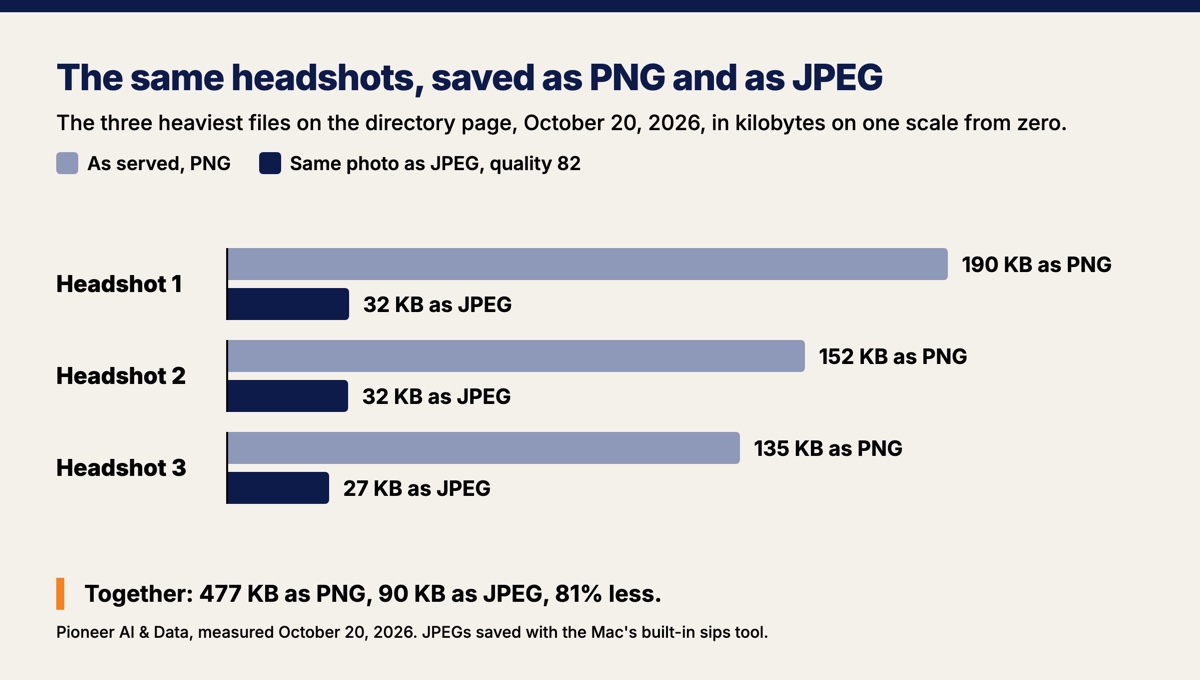
Re-saving those three as JPEGs is the next fix on that page.
How to find out why your website is slow
To find out why your website is slow, weigh the page, find its biggest files, re-export the old photos, and look at the site in a browser you do not usually use. The first two steps need nothing but a browser.
- Weigh the page. Run it through Google's free PageSpeed Insights, or open your browser's developer tools, tick Disable cache in the Network tab, reload the page, scroll to the bottom, and read the total transferred. Compare it with the 2.56 MB median phone home page.
- Find the biggest files. Sort that list by size. For each large photo, compare its own pixel size with the space it fills on the page. A photo thousands of pixels wide in a space a few hundred wide is the thing to fix.
- Re-export the old photos, not only the new ones. Shrink each to about the largest size the site ever shows it, save photos as JPEG unless they need a see-through background, and keep the originals. A resize setting on the upload form does nothing for what is already up.
- Look at your site the way your customers do. Open it in Chrome on an Android phone or a Windows computer, not only on your own iPhone, and scroll every page with photos on it. A blank space where a photo should be can be a HEIC file.
On the site in this post, nothing about the hosting changed. The old photos were shrunk to a size cap for each kind, and the directory went from 11.5 MB to 1.11 MB.
Want this run for your business?
Book a free discovery call. We map where AI fits, show you the numbers, and point you to the right plan. No pressure, no jargon.
Book a Discovery Call →